Create and reimagine
Start from a written idea or give an existing image a new direction. Shape product shots, campaign artwork and everyday creative concepts around your own vision.
Explore GPT Image 2 for your next creative project. Start with a prompt, find a visual direction, and prepare your next creation in one workspace.
4 credits per image · Describe the subject, lighting and style
Your image, your direction. Start with an idea and shape the details.
Portraits, products, places and possibilities. Start with a visual idea, then make the brief your own.
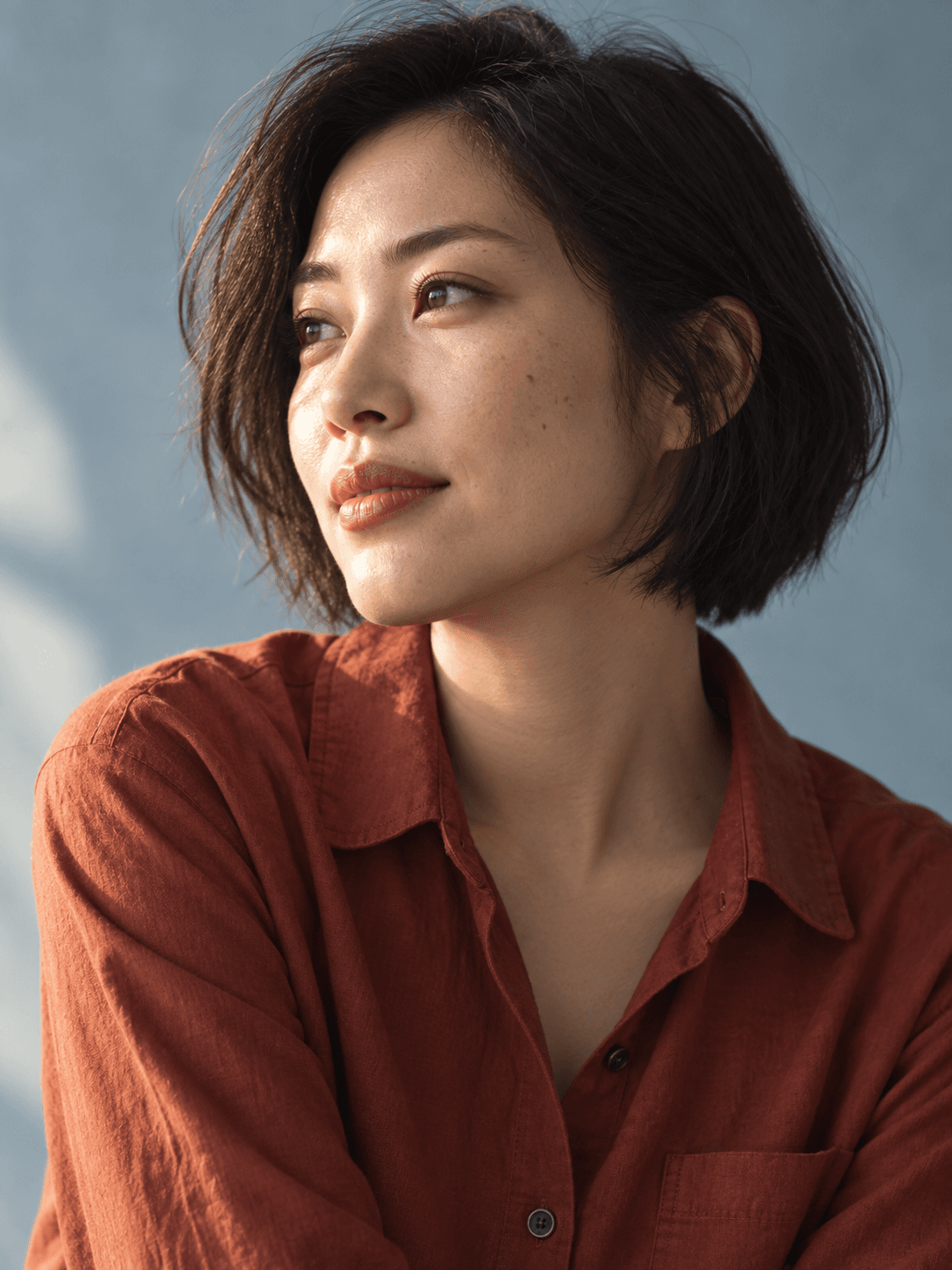
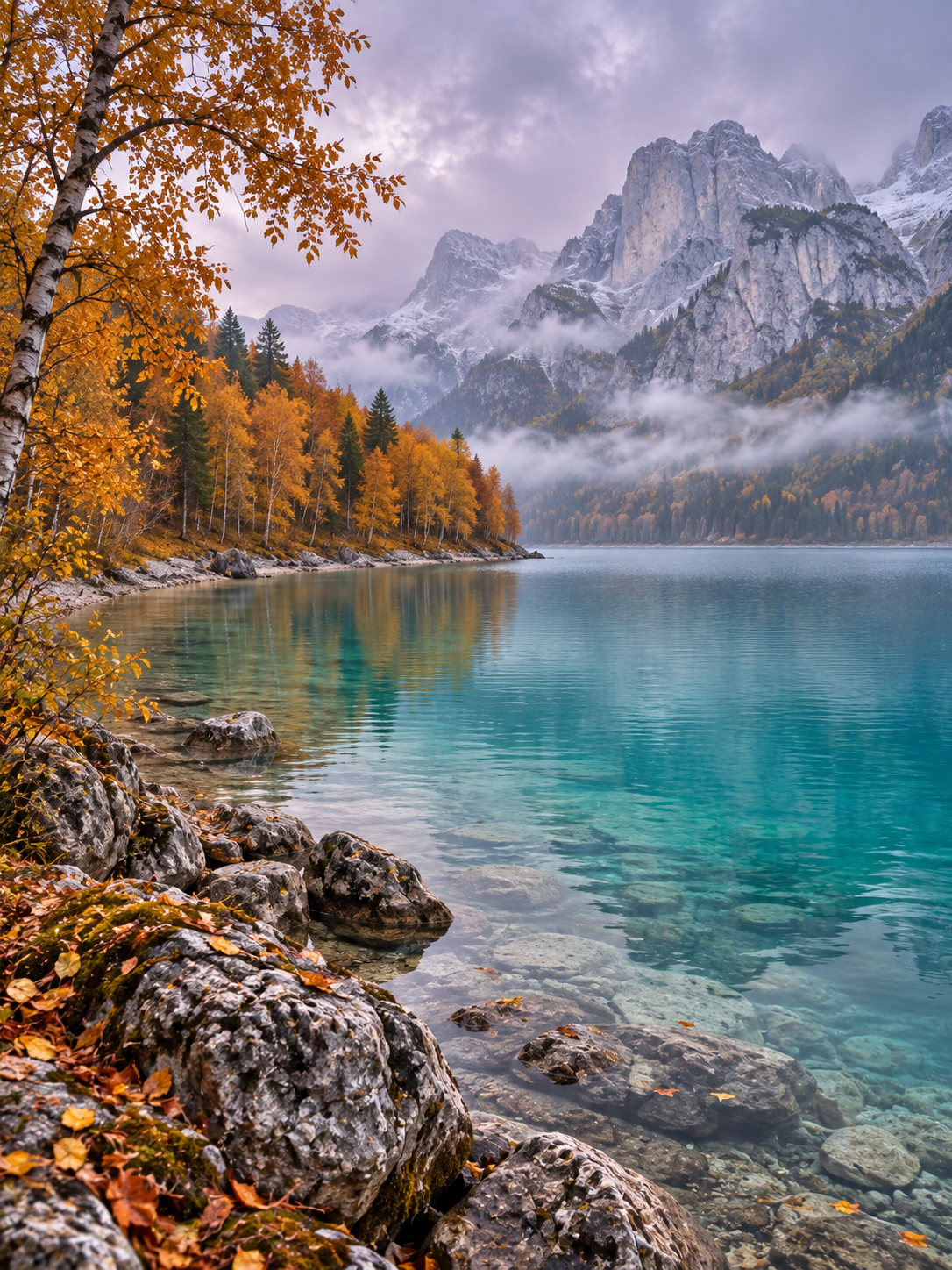
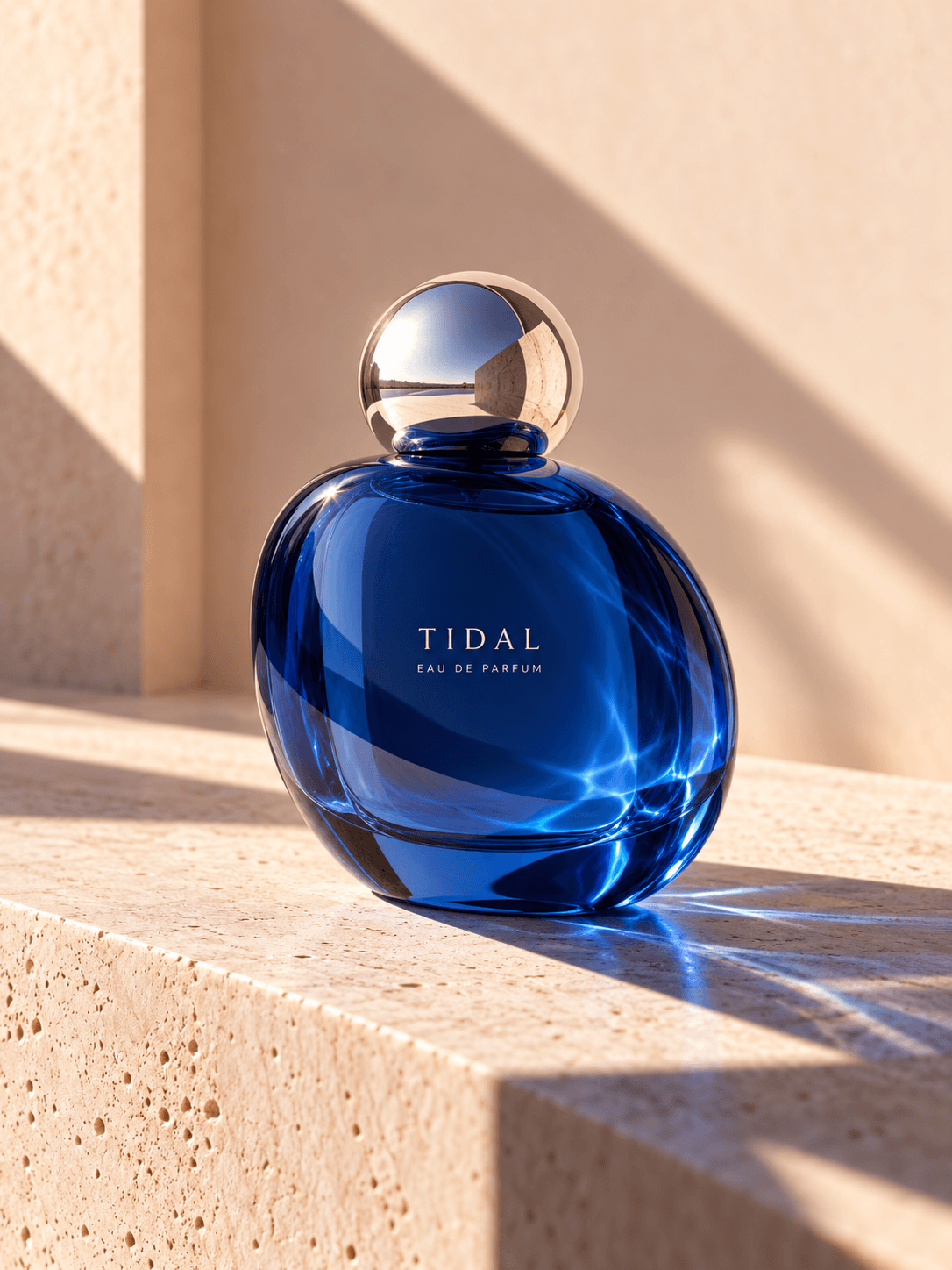
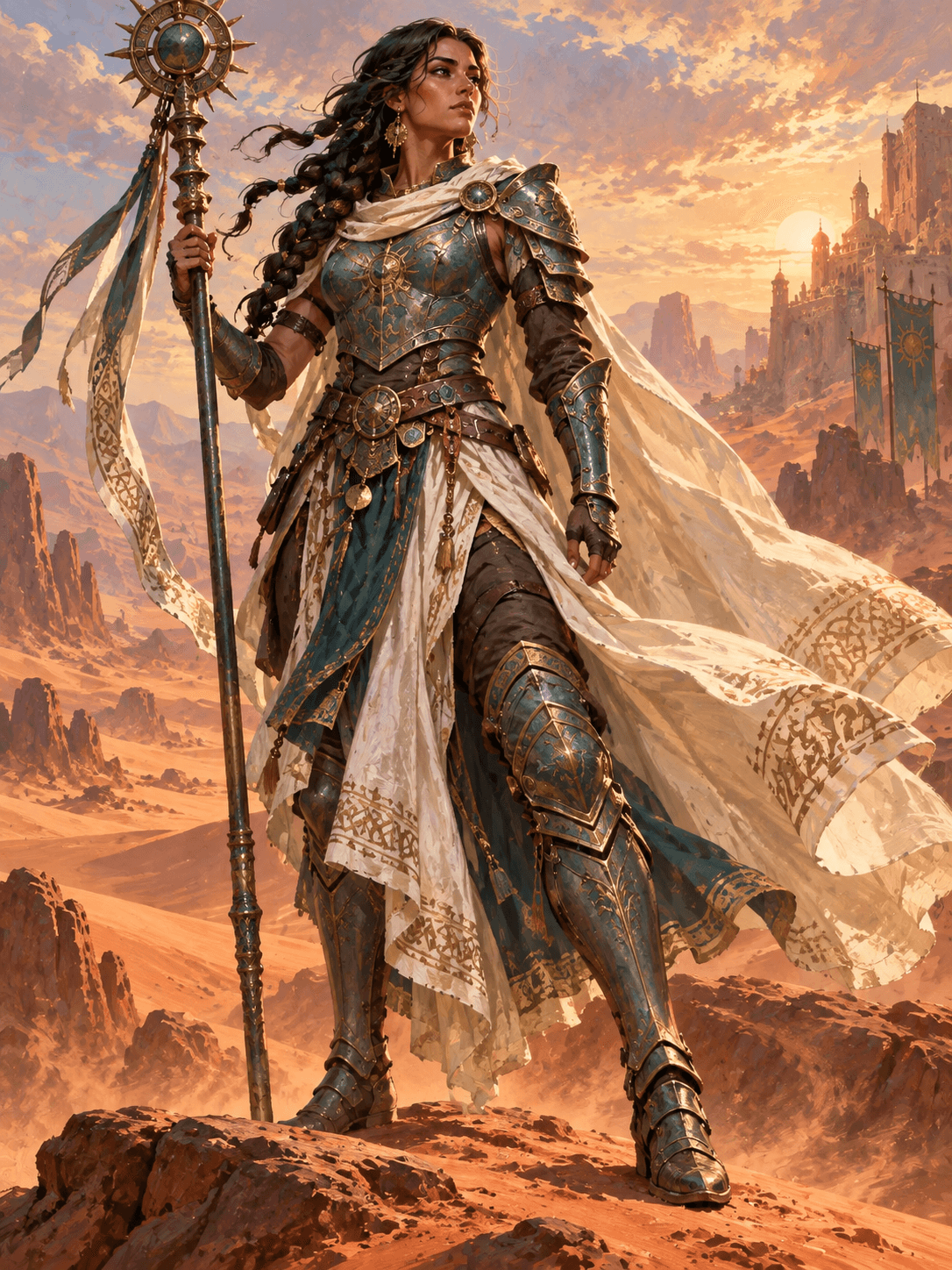
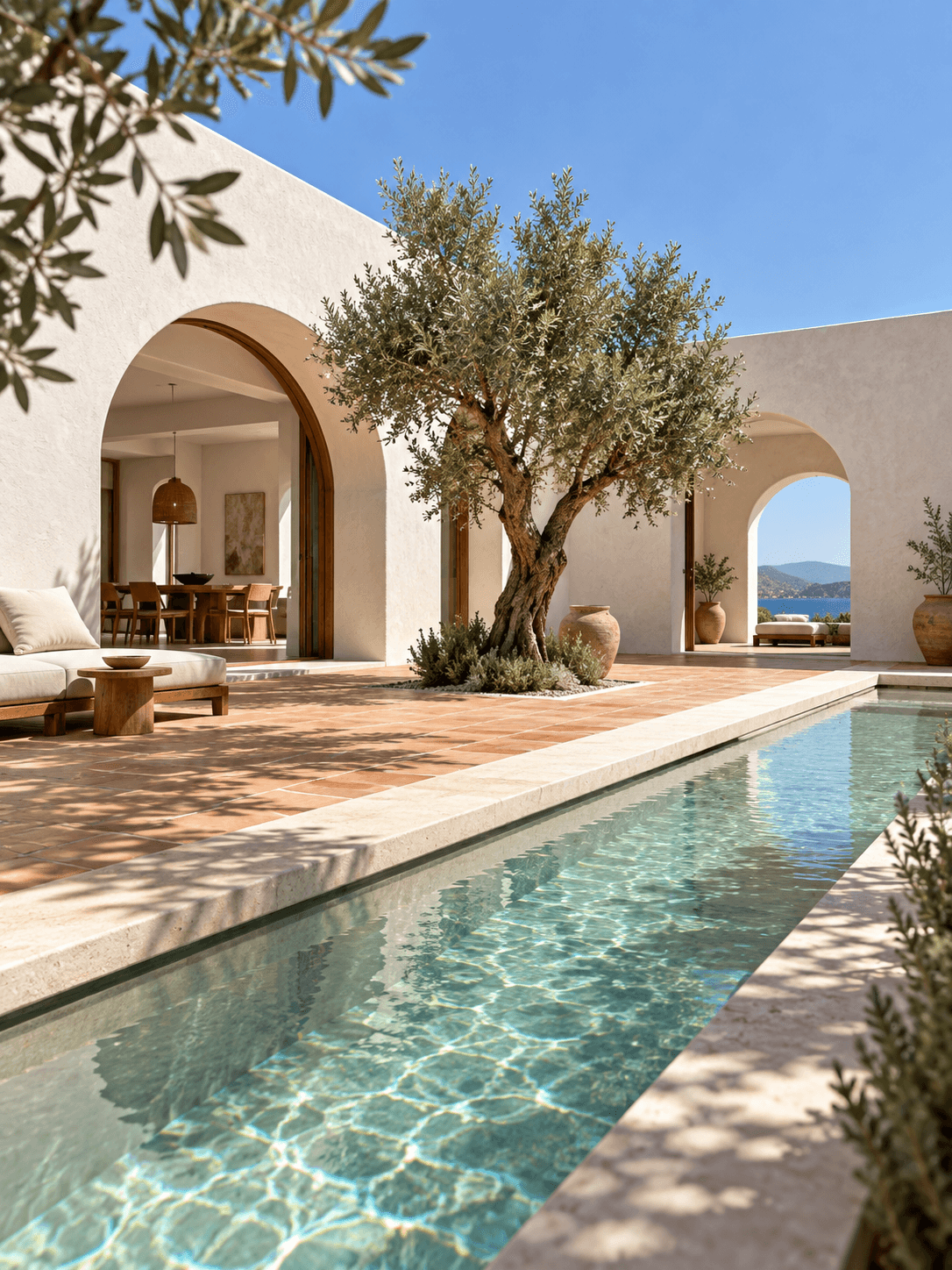
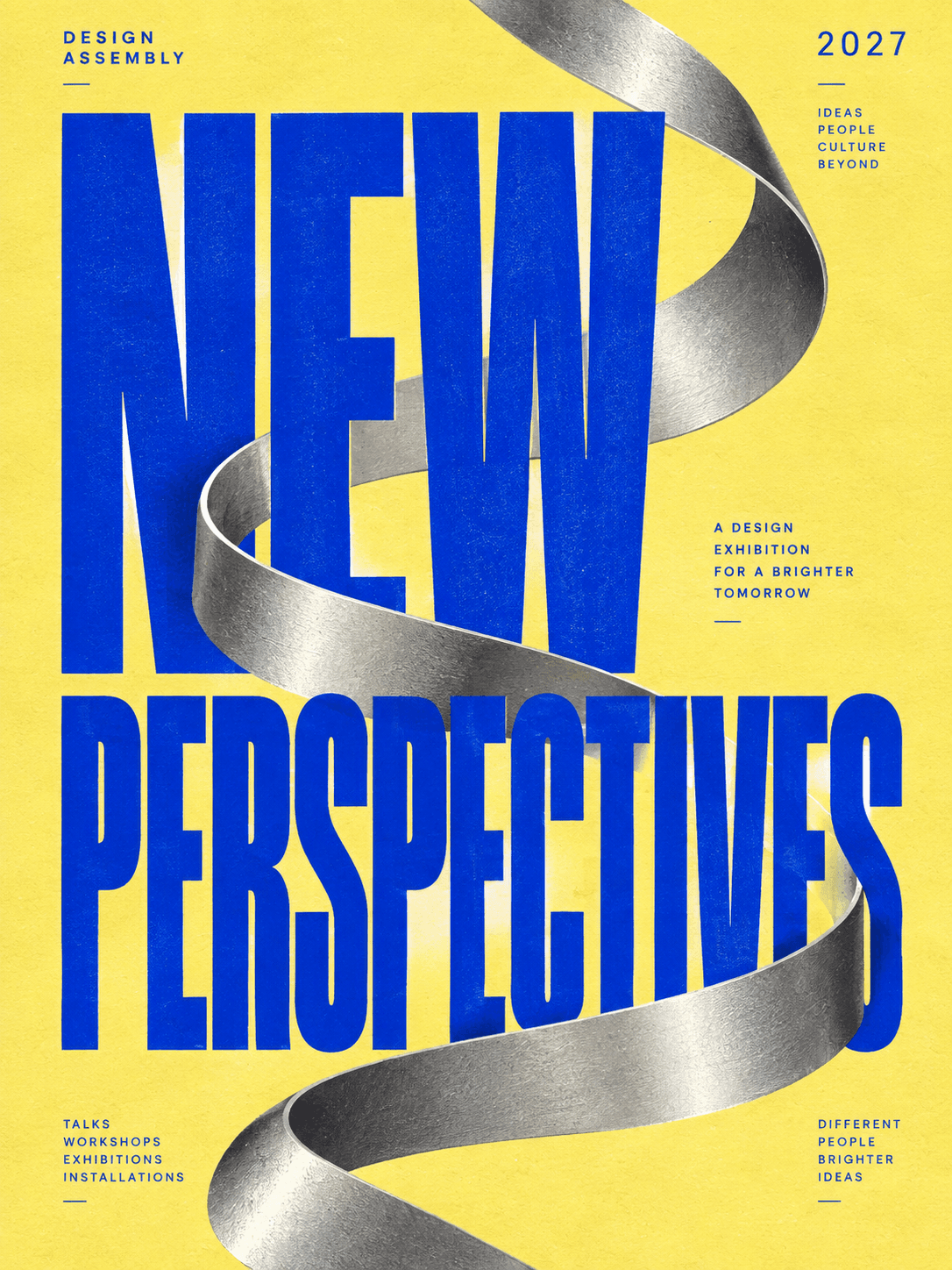
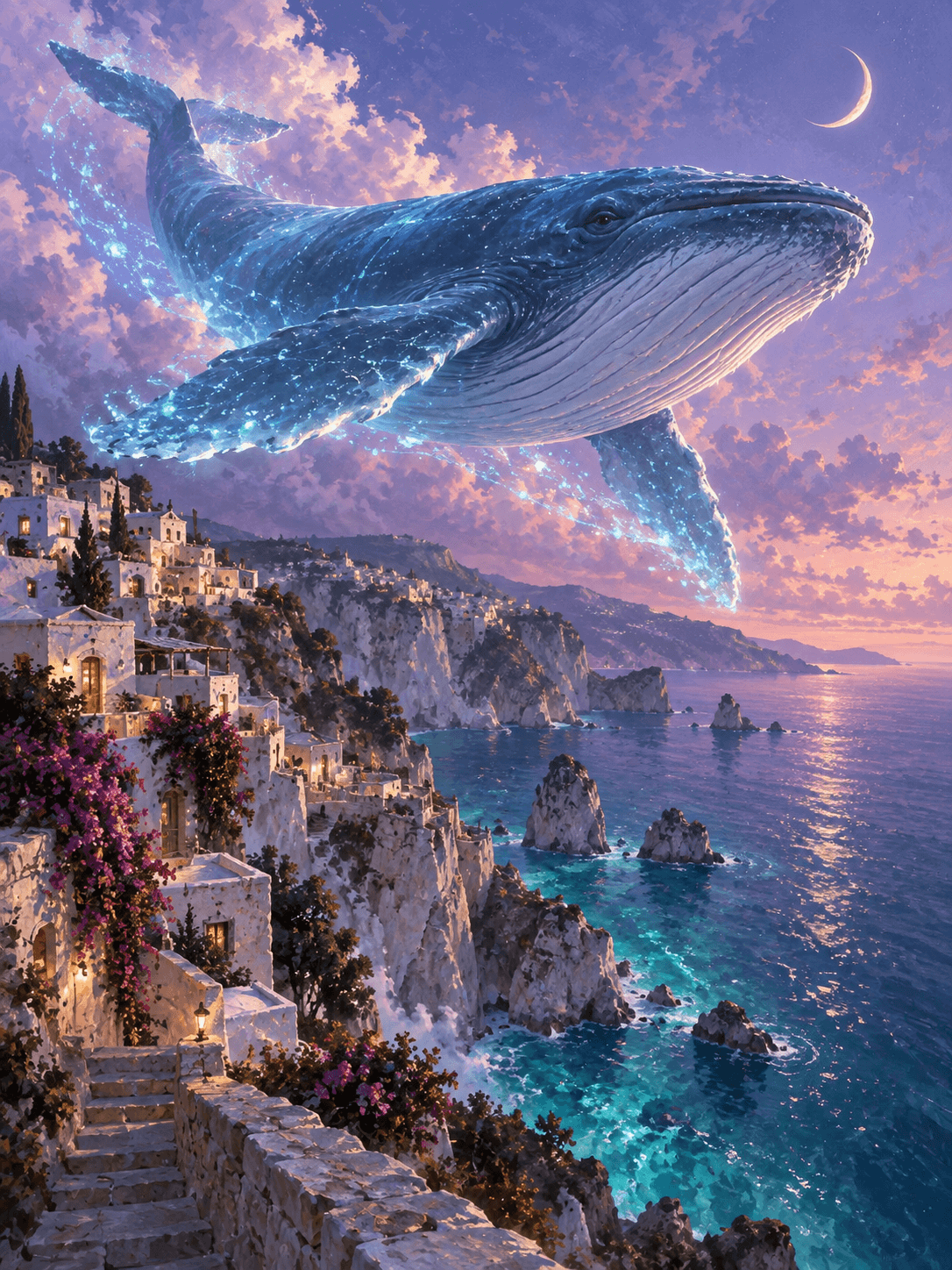
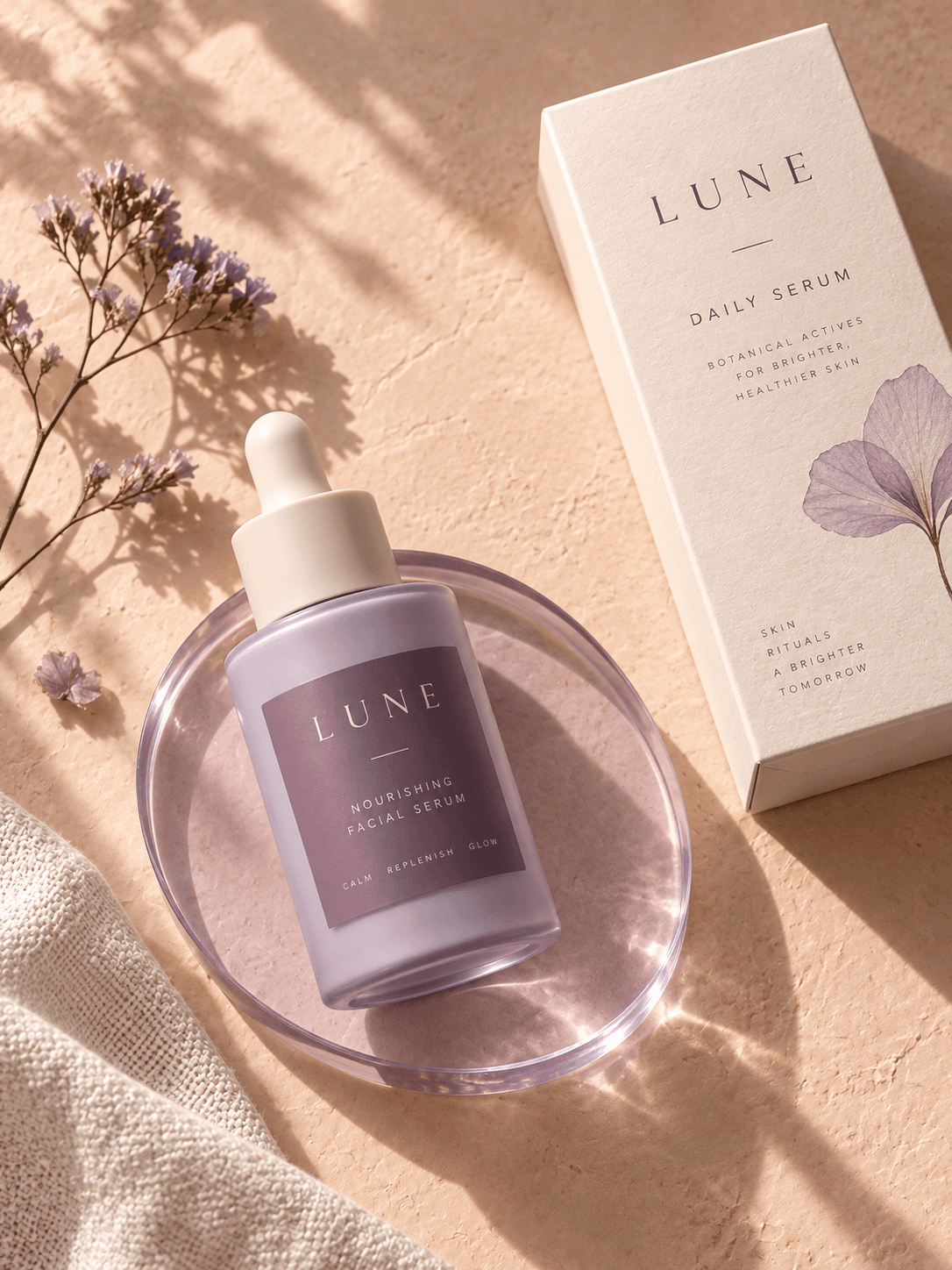
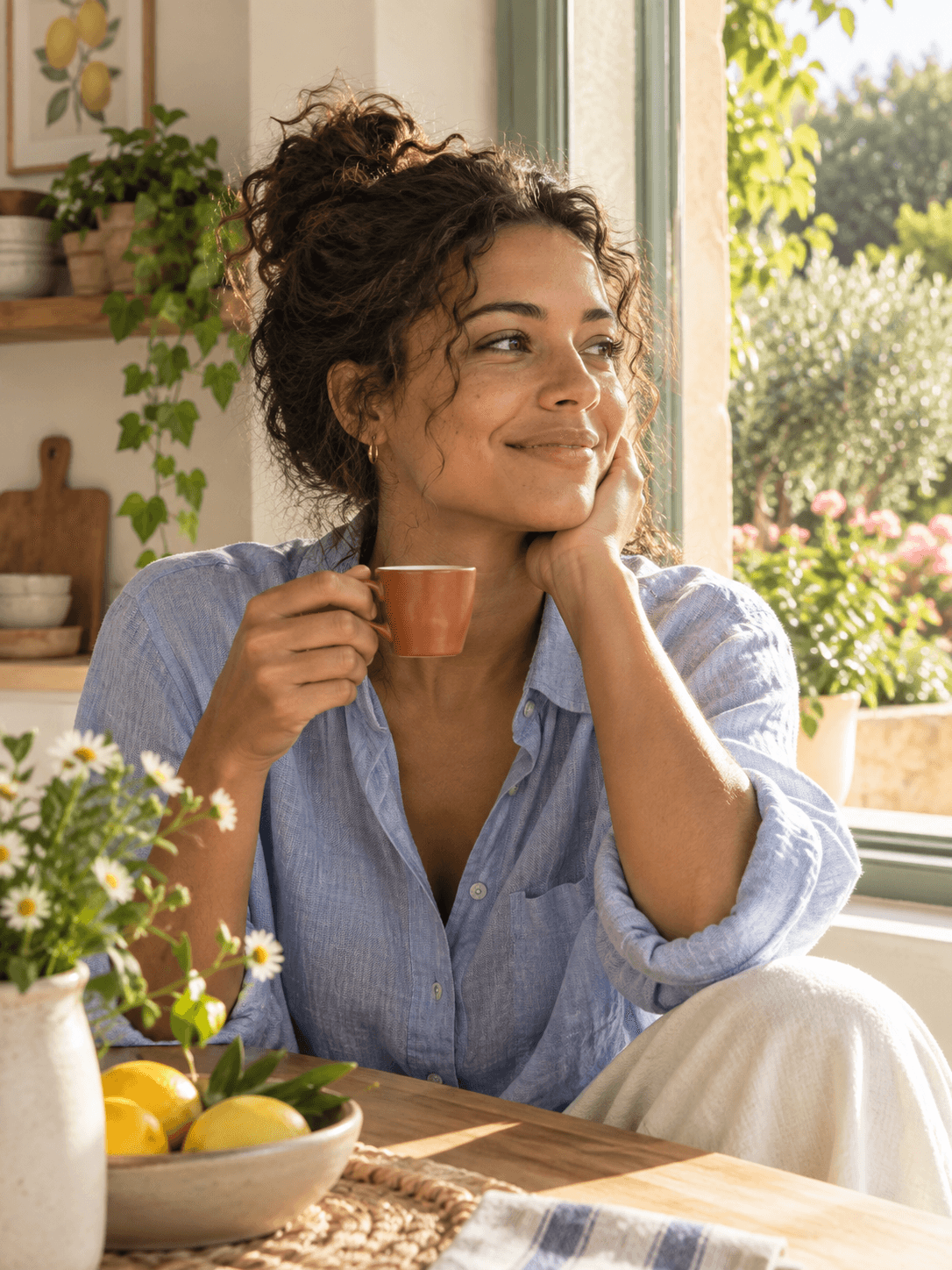
Start from a written idea or give an existing image a new direction. Shape product shots, campaign artwork and everyday creative concepts around your own vision.
Take one concept through different moods, palettes and compositions. Compare a clean studio look with an expressive illustration to find the right direction for your project.
Give each revision a specific goal: a different backdrop, a new material or a change in color. Describe what to update and what should remain unchanged.
Build on your creative direction with focused revisions. Adjust the framing, then the lighting, then the finishing touches, keeping your original idea at the center.
Bring a portrait, product photo or visual reference to anchor your idea. Specify the defining shapes, colors and details you want to carry into a new scene.
Guide the look with precise notes on texture, light and composition. From subtle surface details to generous space for copy, give every part of the image purpose.
Describe your idea, choose a direction and refine the details.
Write a subject, setting, lighting and composition. Try a prompt below if you need a starting point.
Choose a layout preference or add a local reference. Describe the details that matter most.
Review the image against your idea. Adjust your prompt to refine the lighting, framing or mood.
Six prompt starting points. Use one, change a detail, and find your direction.
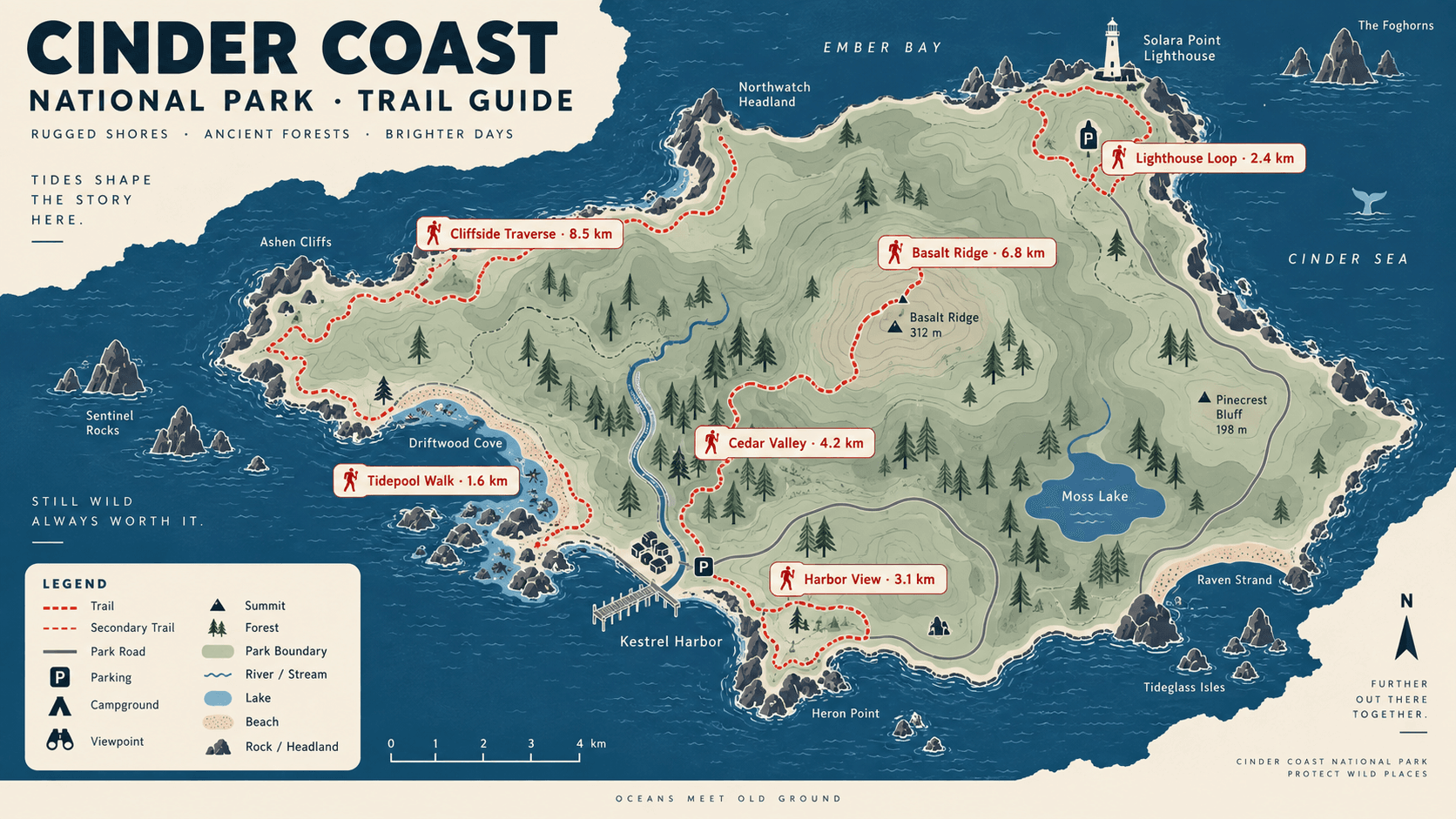 Generated example
A coastal park map with six named routes, clear distances, and a compact legend.
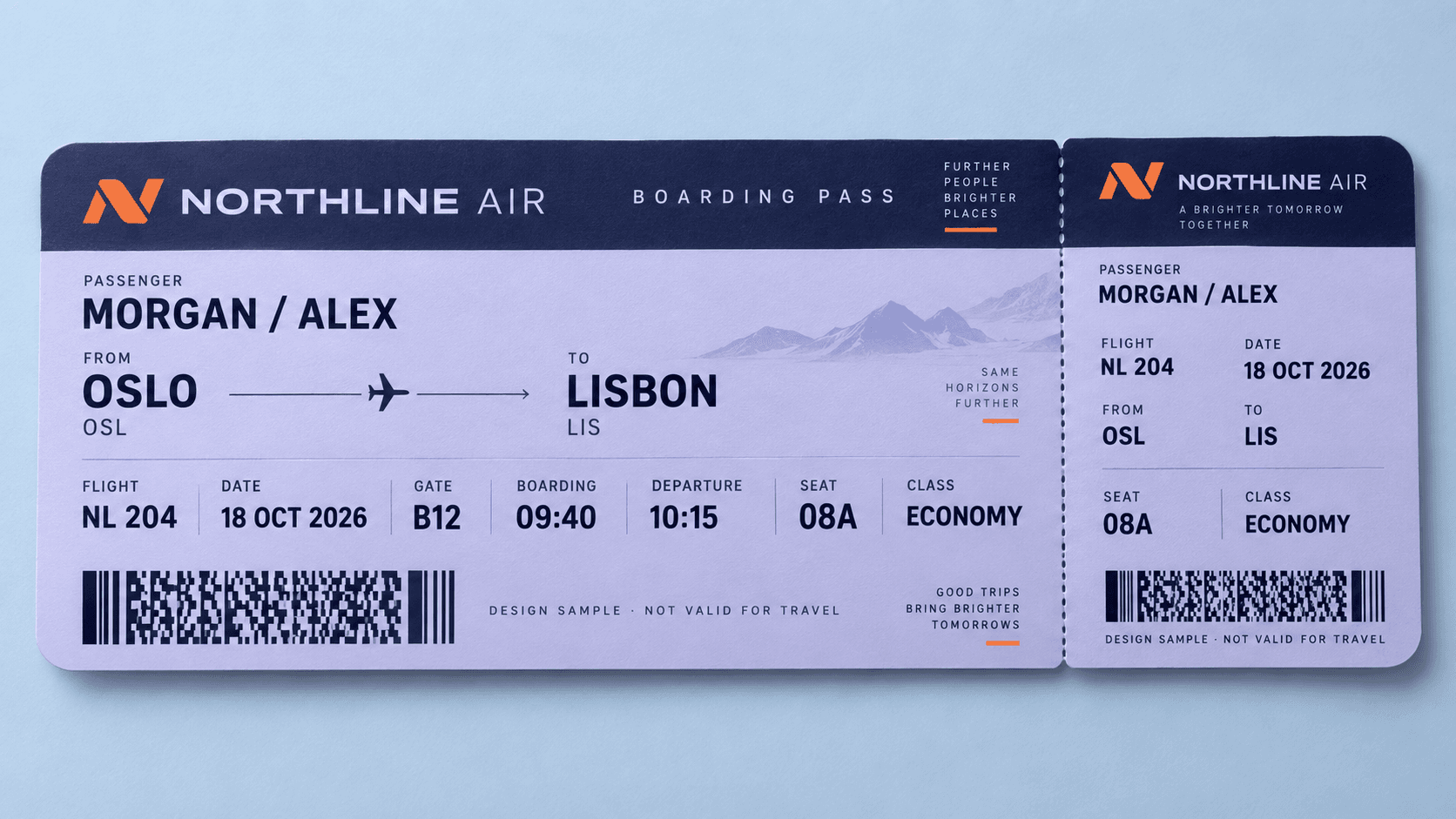 Generated example
A lavender airline ticket with readable passenger, gate, seat, and departure details.
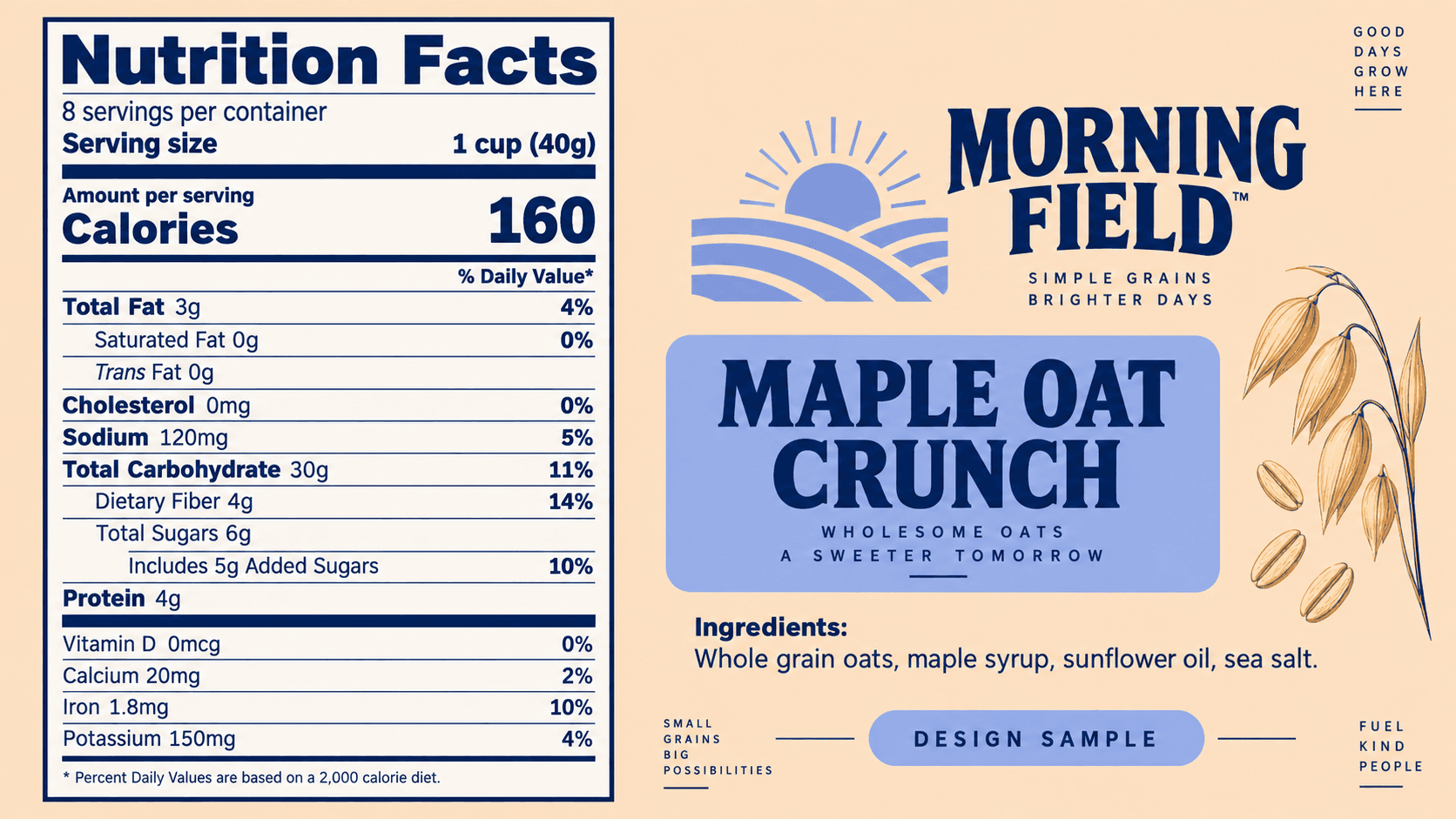 Generated example
A cereal packaging concept with a crisp nutrition table and a fresh apricot palette.
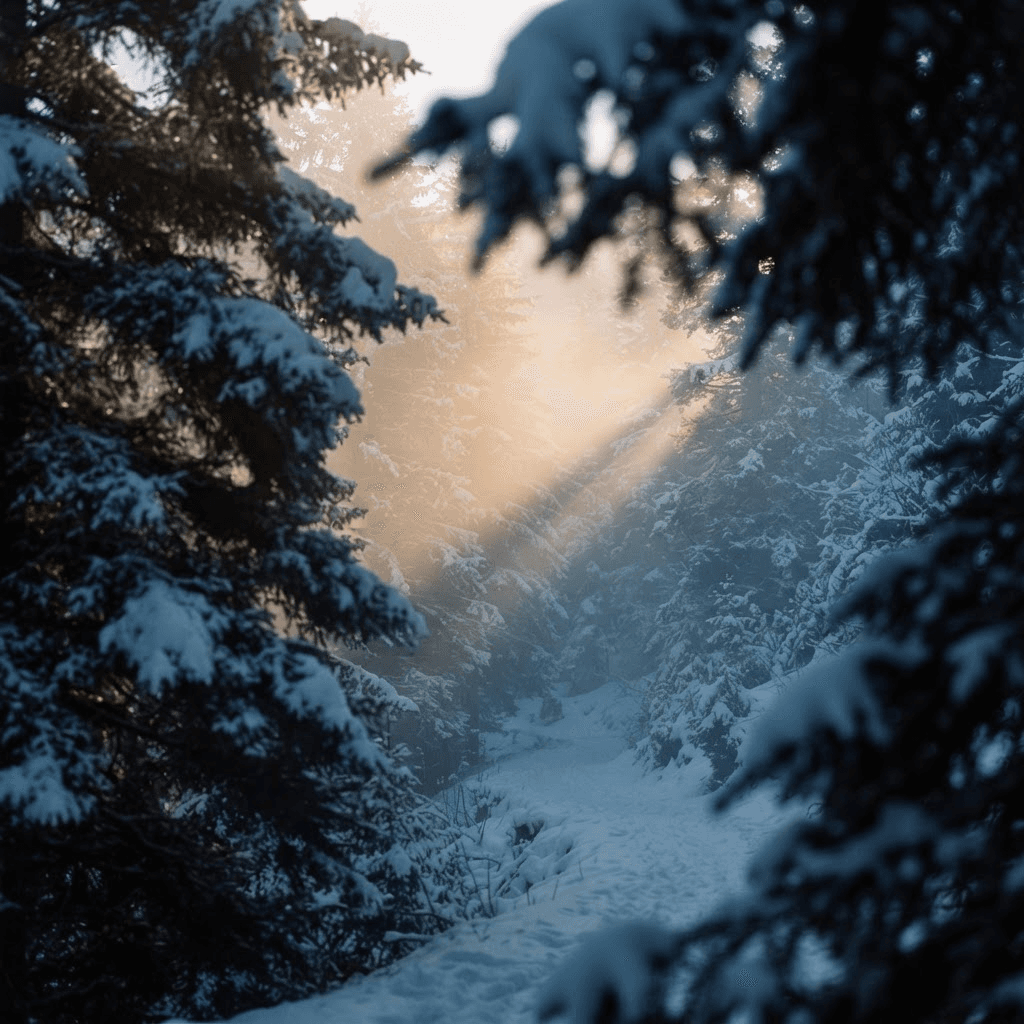 Visual inspiration
Keep the hierarchy clear and the labels short.
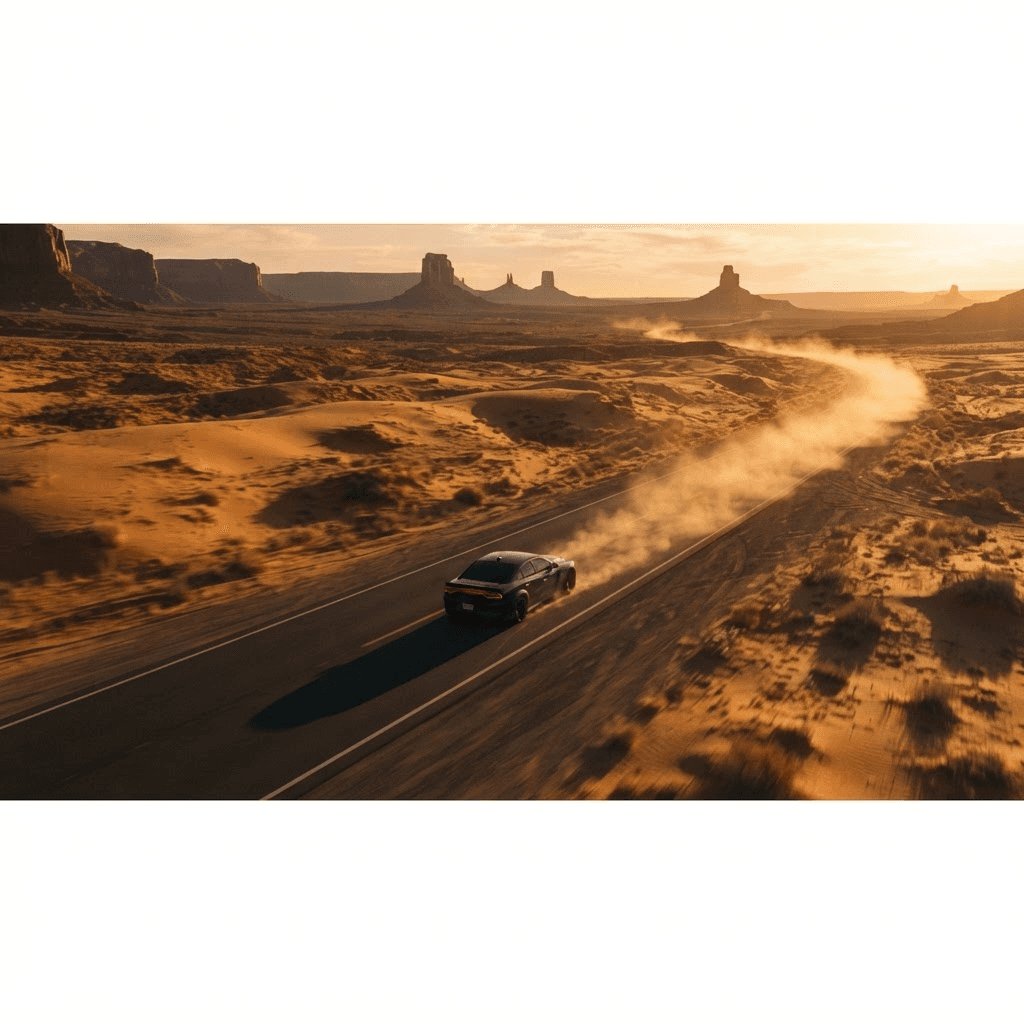 Visual inspiration
Describe the story one frame at a time.
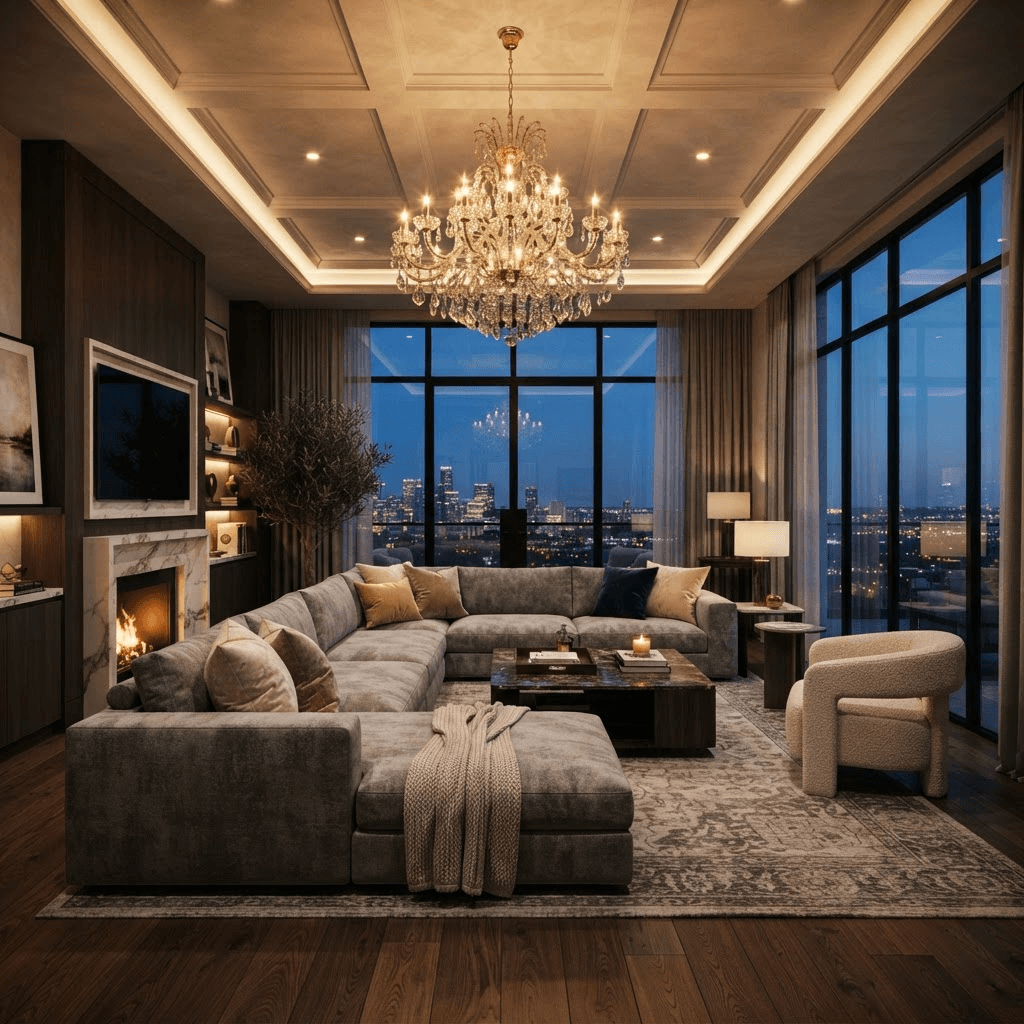 Visual inspiration
Bring a reference when the layout matters.
A campaign, a scene, a visual series. Give every image a clear creative direction.
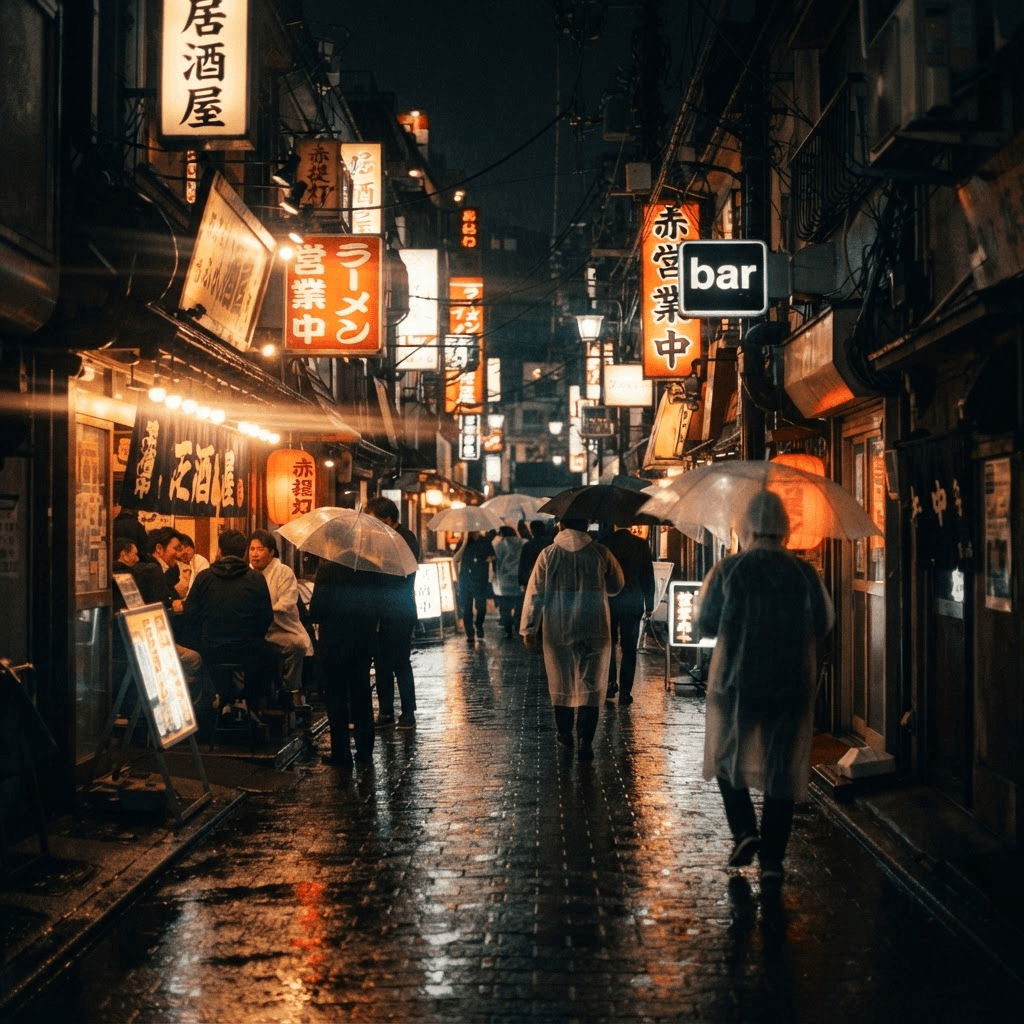 Visual inspiration
Plan one strong frame before thinking about the camera move. Use lighting and composition to establish the mood.
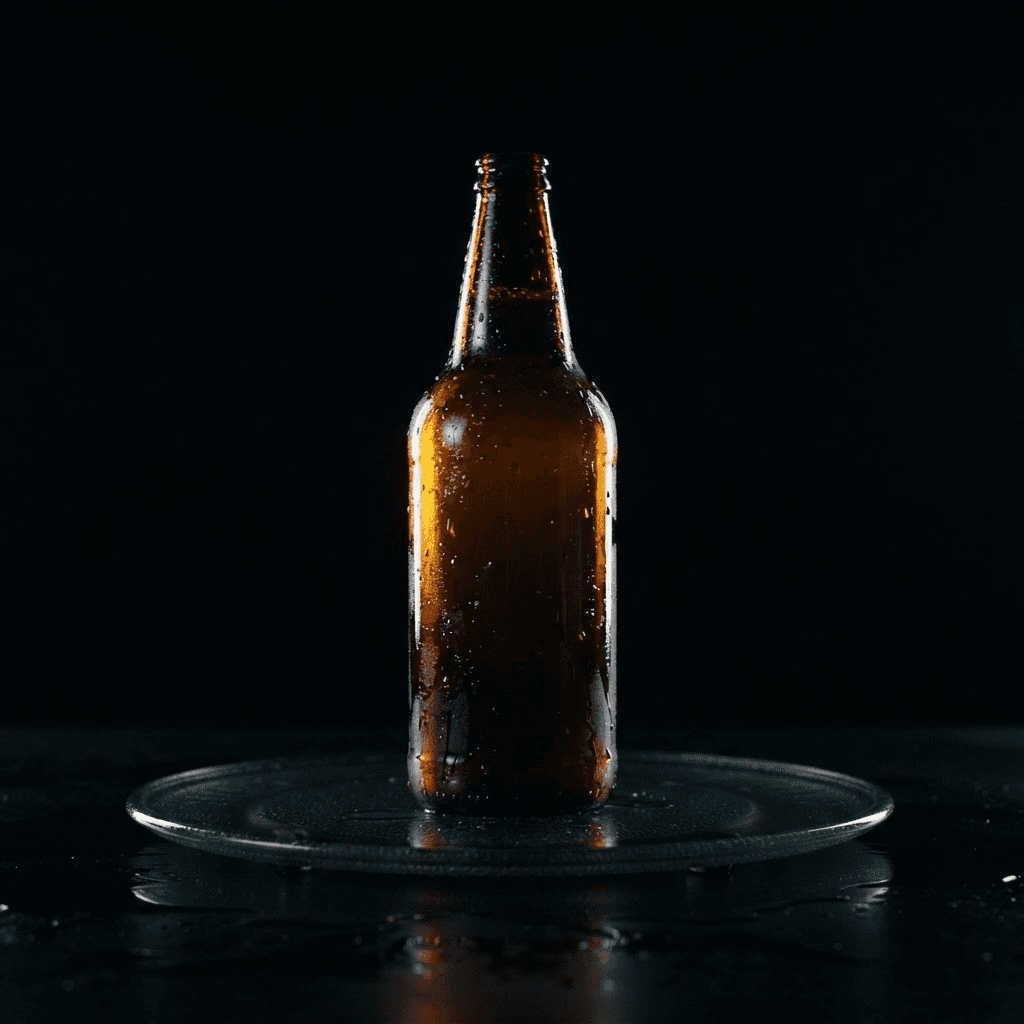 Visual inspiration
Keep the product central. Build a consistent visual brief for your next campaign.
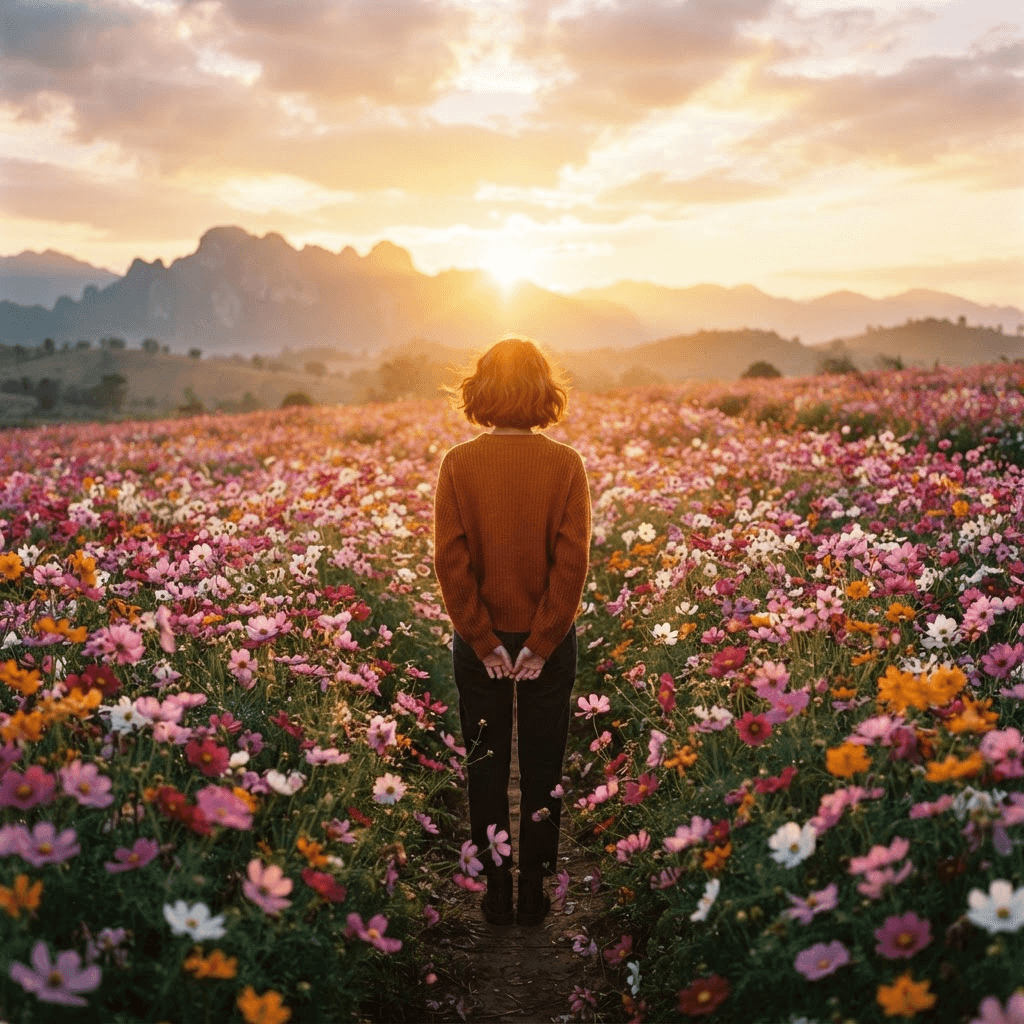 Visual inspiration
Write down the visual rules you want to reuse across a series.
Visual inspirationDefine the perspective, materials and elements that should remain unchanged.
Visual inspirationTurn a location idea into a more detailed scene brief.
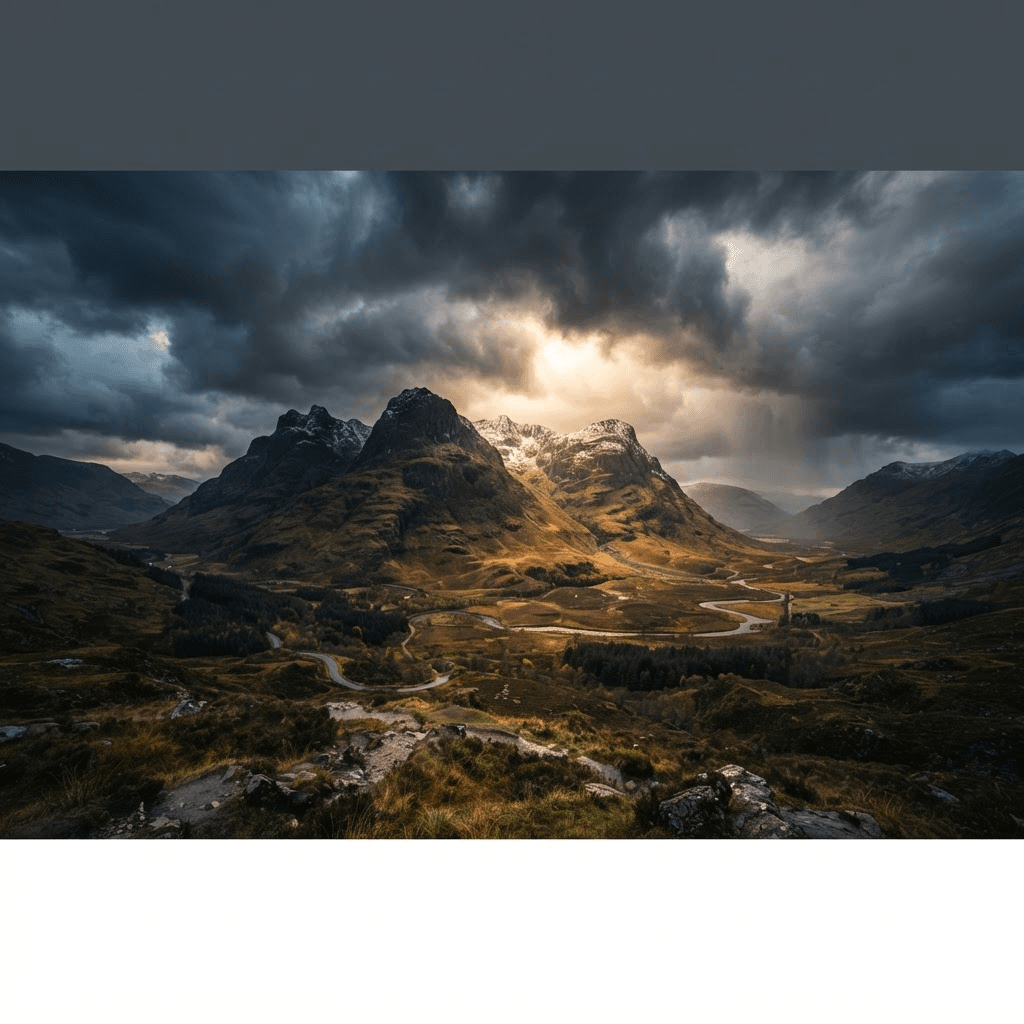 Visual inspiration
Keep a shared palette and lighting description for the next image.
A place for the model, the idea and whatever comes next.
Find model information, visual ideas and prompt starting points together.
Copy a brief, edit it and keep it for your next creative session.
Keep your subject, composition and style focused on the image you want to create.
Explore product photography, portraits, posters and visual storytelling.
Find a plan for your creative workflow. Visit pricing for current plan details and credit allowances.
Use credit packs whenever your next project needs more room.
One-time purchase · Credits never expire
Great for occasional use
$0.040 / credit
$39.90
Perfect for most creators
$0.030 / credit
$89.90
Ideal for power users
$0.025 / credit
$199.90
Best for high-volume usage
$0.020 / credit
$599.90
Best for high-volume usage
$0.019 / credit
$1899.90
Best for high-volume usage
$0.018 / credit
$3599.90
Flare and Sunburst are separate GPT Image 2.5 API variants. OpenAI positions Flare for fast everyday creation and Sunburst for precision-focused work. H3 AI has tested both through Kie; customer pricing is not open yet. The generator above currently uses GPT Image 2, not either 2.5 variant. Inspect our Flare, Sunburst and Nano Banana 2 comparison
See eight matched prompts with original outputs and settings. The comparison identifies each 2.5 variant separately and does not substitute GPT Image 2 results. GPT Image 2.5 vs Nano Banana 2
Explore ideas for product photography, portraits, campaign visuals, illustrations and storyboards. Start with a clear subject and visual direction.
Describe the subject, setting, lighting and composition. Add important colors, materials and exact text. Keep the instructions specific and consistent.
Choose a clear reference and explain which details should stay: the subject, layout, colors or overall style. Then describe the changes you want.
Use square for balanced product visuals, landscape for banners and wide scenes, or portrait for vertical content.
Keep text short, quote the exact wording and describe its position. Check spelling and legibility before publishing.
Reuse the same subject description, palette, lighting and framing. Change one element at a time.
Visit the H3 AI pricing page to compare plans, credit allowances and billing options.